Launcher User Guide
Launcher is the device's startup interface for signing in, opening applications, and using system controls. Installed applications appear without rebuilding Launcher.
Before you start
- Use a device image with LILYGO UI Launcher installed.
- Have a touchscreen or keyboard ready, plus network details for initial setup.
- A configured device uses its actual Linux account and password; there is no universal device password.
- The desktop simulator alone accepts the demonstration account
pi/raspberry.
Set up and sign in
- If First-time setup appears, complete region and language, account, Wi-Fi, updates, and completion.
- Enter a username, password, and matching confirmation. You may keep or change the prefilled username.
- Keep these credentials for subsequent sign-ins and screen unlocking.
- On a configured device, sign in directly to reach the application grid.
Interrupted setup may ask you to authenticate the account already created before resuming. Regional choices configure the system locale, time zone, and keyboard layout; they do not imply that every application has a translation for that language.
Open and leave applications
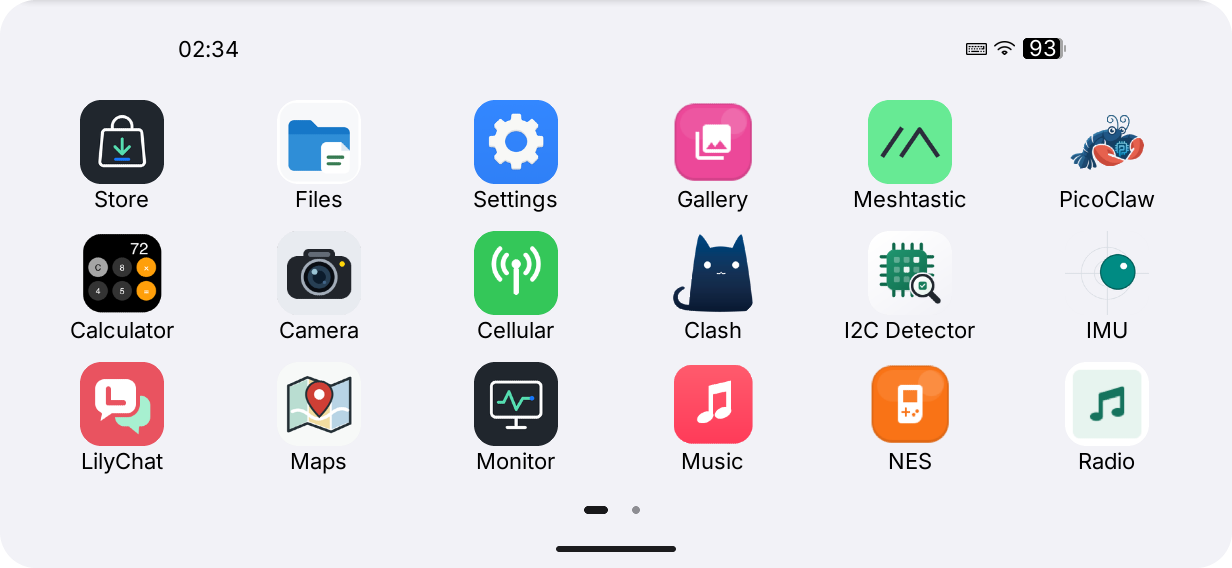
- Tap an application icon on the home screen.
- Swipe horizontally or tap a page indicator to reach additional applications.
- Each page holds up to 18 icons: 3 × 6 in portrait and 6 × 3 in landscape.
- In applications using standard AppKit system controls, swipe up from the bottom edge to exit and return home.
Returning home ends the foreground application process. Saving unfinished work depends on the individual application. After package installation or removal, allow approximately two seconds on the home screen for its icons to refresh.
Quick controls
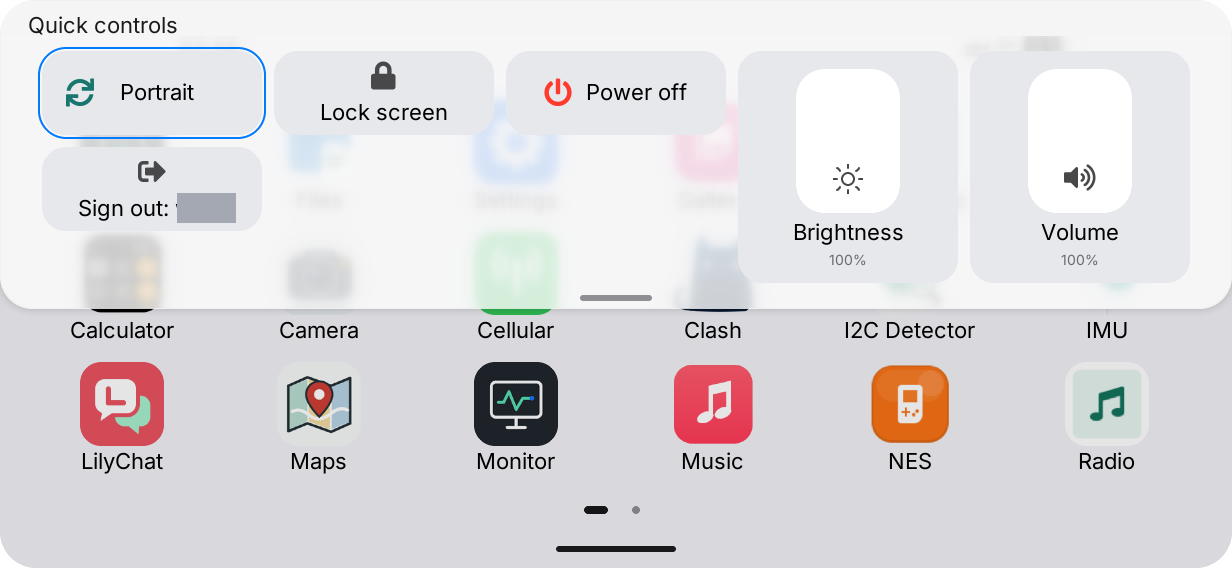
Swipe down from the home screen's status bar or press Space to open Quick controls. Press Space again or Esc to close it.
| Control | Action |
|---|---|
| Orientation | Switch between portrait and landscape. |
| Brightness | Drag vertically; keyboard adjustments use 5% steps. |
| Volume | Drag vertically; keyboard adjustments use 5% steps. |
| Lock screen | Keep the account session and require its password to unlock. |
| Sign out | End the account session and return to sign-in. |
| Power off | Confirm to shut down the device; the simulator only shows a completion message. |
Connecting a TCA8418 keyboard selects landscape. Disconnecting it retains the current orientation. Manual orientation choices persist while that keyboard stays connected; other keyboards do not trigger this automatic rotation rule.
Receive files from a browser
- Put the computer and device on the same LAN and enable the computer's Bluetooth.
- Sign in and open Quick controls → File sharing. Keep the panel open.
- Open this site's file sharing page in a browser supporting Web Bluetooth.
- Connect to the nearby
lilygo_xxxxdevice and select a file to send. - Check the filename and size on the device and choose Receive file. Each file needs separate confirmation.
- Wait for completion in the browser, then find the file in the signed-in user's
Downloadsfolder.
Bluetooth handles discovery and negotiation; file content travels over the LAN. Bluetooth disconnecting after the connection is established is expected. Conflicting filenames receive a numbered name. Closing sharing, locking, signing out, or opening an application ends sharing and cancels incomplete transfers.
Accounts and storage
Device applications run as the signed-in Linux user, with that user's home and XDG directories. Received files go to $HOME/Downloads. Launcher state is under /var/lib/lilygo-ui-launcher/; do not edit it to reset an account. Administrators can inspect service logs with journalctl -u lilygo-ui-launcher.service.
Troubleshooting
| Symptom | What to check |
|---|---|
| An installed app has no icon | Return home and wait; verify the complete package and its application entry. |
| Sign-in fails | Use the device's Linux credentials, not the simulator account. |
| Time is incorrect | Check the system time zone and time synchronization service. |
| File sharing cannot connect | Check browser permissions, Bluetooth, LAN connectivity, and router client isolation. |
| A received file seems missing | Check the signed-in user's Downloads folder. |