Enable SSH remote login
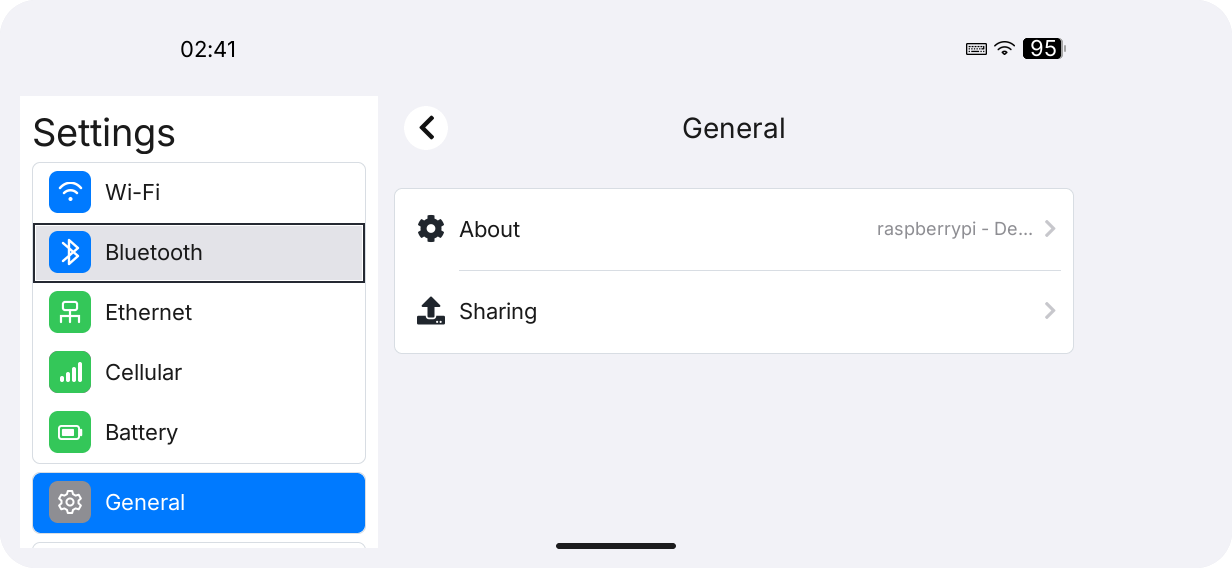
SSH lets you sign in to your device from a computer and run commands in a terminal. The switch is under Settings → General → Sharing → Remote Login.
Before you start
- Complete first-time setup and have your device's Linux username and password ready.
- Connect the computer and device to the same local network, using Wi-Fi or Ethernet.
- Have an SSH client available on the computer. Run the connection commands below there.
Use the account you created or configured on the device; there is no universal default password. The Settings switch starts or stops SSH. It does not create accounts, change passwords, or alter password or key authentication settings.
1. Turn on Remote Login in Settings
- Open Settings from the device's Launcher.
- Go to General, then select Sharing.
- Turn on Remote Login.
- Wait for Turning On Remote Login... to finish and confirm Remote Login: On.
Once enabled, SSH is available immediately and starts automatically after a restart. No restart is needed to enable it. The switch is temporarily unavailable while the change is applied. Serial Console controls serial login; SSH does not require that switch.
2. Find the device IP address
In Settings, check the network connection the device is using:
| Connection | Where to look |
|---|---|
| Wi-Fi | Open Wi-Fi, select the current connection's details, and find the IPv4 address under TCP/IP. |
| Ethernet | Open Ethernet and read IP Address. |
Note the device address, such as 192.168.1.100. This is an example; use the address shown on your device, rather than the gateway or computer address. The device IP can change after switching networks or reconnecting.
3. Connect from the computer
Open a terminal on the computer, or PowerShell on Windows. Replace username with the device's Linux username and 192.168.1.100 with the device IP from the previous step:
ssh username@192.168.1.100On the first connection, the client may display a host key fingerprint and ask whether to continue. Verify the device fingerprint, then type yes and press Enter. Your device administrator can provide the fingerprint for comparison.
When prompted for a password, enter that device account's password and press Enter. It is normal for no characters or asterisks to appear while typing. If the device uses key authentication, use the existing key configuration; turning on Remote Login does not also enable password authentication.
A remote shell prompt indicates a successful login. Run whoami to check the signed-in account. Commands now run on the device. When finished, end this connection with:
exitExiting the connection leaves the device's SSH service enabled.
4. Turn off SSH login
On the device, return to Settings → General → Sharing, turn off Remote Login, and wait for Remote Login: Off. Once disabled, the device stops accepting new SSH logins and SSH no longer starts automatically at boot.
Troubleshooting
| Symptom or message | What to do |
|---|---|
| SSH Server Is Not Installed | Ask the device administrator to install OpenSSH server, then reopen Sharing. |
| Administrator Permission Is Required to Change Remote Login. | Ask the administrator to check the Settings package and authorization policy for the current user. Settings does not display an administrator password prompt. |
| SSH Is Disabled by System Policy | SSH is disabled by system policy. Ask the device administrator to resolve it. |
| Remote Login Change Was Not Fully Applied or a change timeout | Reopen Sharing to check the actual state. If the error remains, ask the administrator to check the system service and application logs. |
The computer cannot find the ssh command | Install or enable an OpenSSH client on the computer, then retry. |
Connection timed out or No route to host | Check the current device IP, both network connections, router client isolation, and firewall settings. |
Connection refused | Check the address and confirm Remote Login: On. If the administrator changed the SSH port, use the actual port with ssh -p PORT USERNAME@DEVICE_IP. |
Permission denied | Check the device username, password or key, and allowed authentication methods. Enabling Remote Login does not guarantee account authentication will succeed. |
The controls and status messages were checked against Settings 0.1.1 source on November 4, 2026.
Settings user guide · All user guides · Documentation center